How to Organize Your Digital Workspace (Without Starting Over)
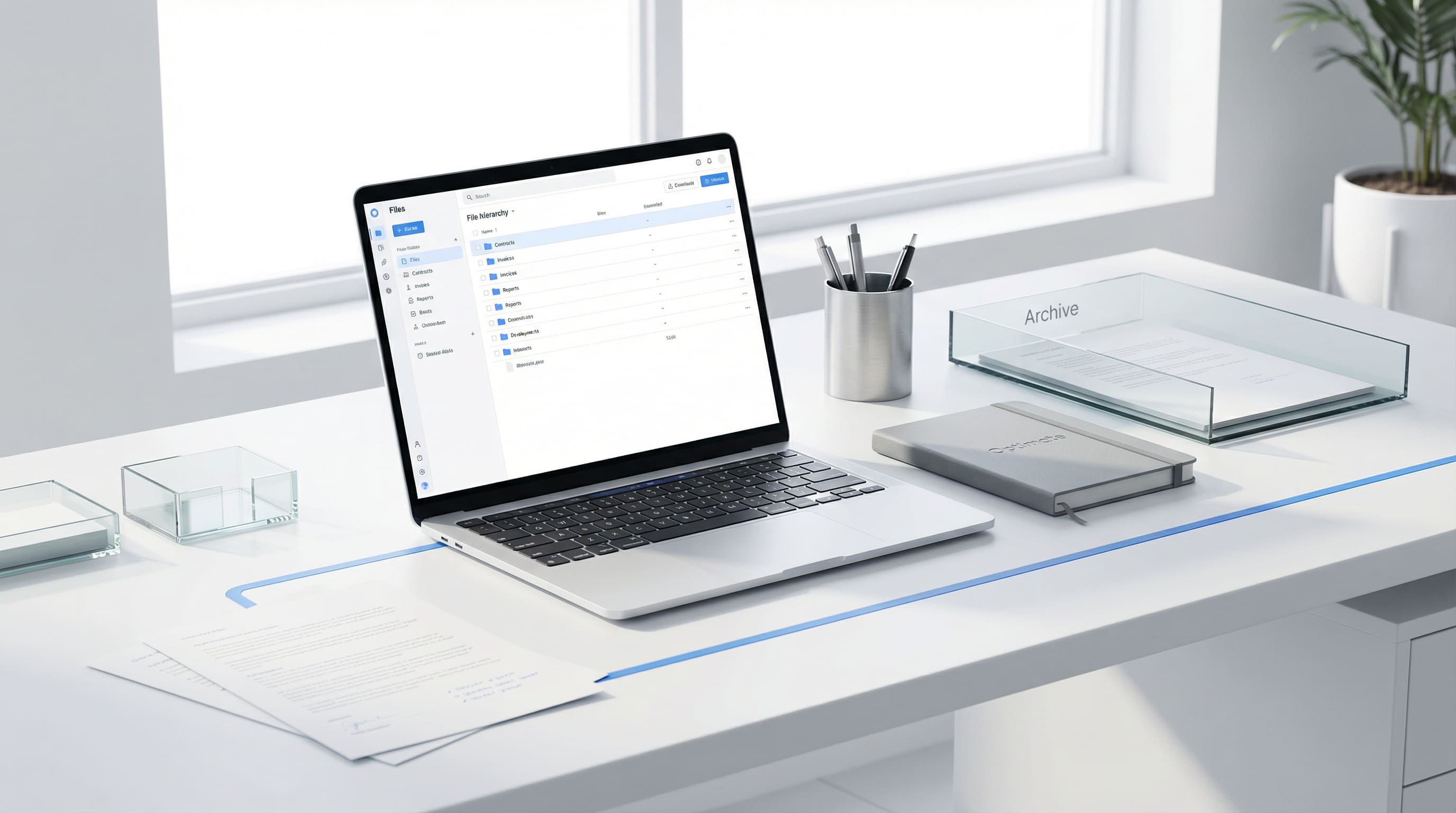
A disorganized digital workspace is usually a symptom of an unclear work system, not a tool problem. Switching to a new app doesn’t fix the underlying structure. The most effective approach is to define your work categories and decision logic first, then configure your tools around that structure, so you’re building a digital environment that reflects how your work actually flows, not starting over in a blank new interface.
Most professionals have tried the opposite: discovered a promising new tool, migrated their information into it, and found three months later that the same chaos followed them there. The tool wasn’t the problem. The missing structure was.
Why Tool-Switching Rarely Solves Digital Chaos
There’s a pattern that plays out in knowledge work reliably. You accumulate digital chaos (files spread across four platforms, project notes scattered between your email, a project management tool, a personal note app, and several Slack channels) and it becomes genuinely hard to find what you need. The natural response is to search for a better system, and “better system” usually means “new tool.”
Notion gets adopted. Or Obsidian. Or a new project management platform. You spend a weekend migrating. The new space looks clean and promising. Then real work resumes, and within weeks the same chaos is building in the new environment. The information structure is still undefined. The intake habits are still the same. The old patterns reassert themselves in new containers.
The lesson is not that tools don’t matter. They do. The wrong tool creates unnecessary friction. But tools are containers: they hold whatever you put into them. A well-organized container holding disorganized information is still disorganized. The work of organizing your digital workspace is the work of defining the information structure, not selecting the interface.
The Two Distinct Problems
Digital workspace chaos usually comes from one of two distinct problems, and the solution is different for each.
Problem 1: Too many tools. Your information exists in five different places and you’re maintaining all of them in parallel. You have a task manager, a note app, a project management tool, a document editor, and communication tools, and there’s meaningful overlap in what lives where. Work gets duplicated. Things get missed. Decisions about where to put new information take cognitive overhead every time.
The solution here is consolidation: identify a primary home base and migrate the information that matters into it. Not everything, just the information you actually access and use. Most of what’s in an underused tool can be archived or deleted.
Problem 2: The tool doesn’t match your method. You have one primary tool, but it’s configured for a way of working that doesn’t match how you actually work. Maybe you set up a complicated tag taxonomy that you never maintain. Maybe your project structure reflects an old way of organizing work that’s no longer relevant. Maybe the tool was configured by someone else for someone else’s workflow.
The solution here is reconfiguration, not replacement. Don’t switch tools. Rebuild the structure inside the tool you already have around your current work reality. This is faster, avoids another migration, and removes the “start over” tax.
💡 Key Insight
Diagnose Before You Migrate
Before switching tools, ask: Is the problem that I have too many tools (consolidation problem) or that my single tool is configured wrong (reconfiguration problem)? The answer determines whether you need a new environment or just a rebuild of the one you have.
Step 1: Map Your Actual Work Categories
Before touching your tools, spend 30 minutes mapping how your work actually organizes itself. Not how you wish it organized itself, or how it’s supposed to work according to a productivity system you read about. How it actually flows in practice.
Most knowledge workers have 5–8 meaningful work categories when they look honestly at where their time and attention go. Common examples:
- Active projects: initiatives with a defined scope, timeline, and deliverable
- Ongoing responsibilities: recurring work that doesn’t have a fixed end date (team management, client relationships, regular reporting)
- Reference materials: information you need to access regularly but aren’t actively working on
- Inboxes: places where new information arrives and needs to be processed (email, Slack, meeting notes)
- Archives: completed work you might need to reference but don’t actively use
Your specific categories will depend on your role. A project manager’s categories look different from a solo operator’s. What matters is that the categories reflect your actual work, not an idealized framework.
Once you have your categories, you have the structure for your digital workspace. Every piece of information you interact with should have a natural home in one of these categories. If something doesn’t fit, that’s useful information: either the category is missing, or the information shouldn’t be in your system at all.
Step 2: Choose a Single Home Base
With your work categories mapped, the next step is choosing one tool to serve as your primary workspace: the place where your prioritized workload, active project information, and key reference materials live. Everything else becomes either an inbox that feeds into the home base or a specialized tool for a specific function.
The most common home base options for knowledge workers:
Notion works well if you have multiple types of information that benefit from being connected, including projects linked to notes, tasks linked to documents, and databases that cross-reference. The flexibility is high; so is the setup cost. Best for people who will invest time in configuration and maintenance.
Google Workspace (Drive + Docs + Tasks) works well for teams already living in Google’s ecosystem. Lower setup cost, excellent collaboration features, less powerful for complex relational information. Best for people who want a familiar environment with minimal new learning.
Microsoft 365 (OneNote + Planner + Teams) works similarly to the Google approach but in Microsoft’s ecosystem. Strong choice if your organization is already on Microsoft infrastructure.
Obsidian works well for note-heavy knowledge work where you want to build connections between ideas over time. Lower collaboration capability, higher personal customization. Best for solo knowledge workers with significant research or writing needs.
The right tool is the one you’ll actually maintain. A sophisticated Notion setup that degrades after two weeks is worse than a simple Google Docs folder structure you actually keep updated. Default toward the tool you already know unless there’s a clear capability gap that another tool specifically addresses.
Not sure where to start? Take the free 10-question diagnostic to see where your system is under strain.
Take the Diagnostic →Step 3: Build the Structure (The Digitize Phase)
Once you have a home base, build the structure that mirrors your work categories. This is what the Digitize phase of the LEAD System is designed to do: take the method you’ve developed (through Lighten, Evaluate, and Assign) and give it a permanent, repeatable home in your digital environment.
Concretely, this means:
One view of your active workload. A single list or board showing everything you’re actively working on, organized by priority, with clear owners and deadlines. This is your operating dashboard, the thing you check at the start of each day and update at the end of each week. If your task view spans multiple tools or requires reconciling information from several places, simplify it until it’s a single trusted source.
A structured project folder system. For each active project, one folder (or page, or database entry) that contains: the project brief, the current status, key documents, and open questions. The structure doesn’t need to be elaborate. It needs to be consistent. Inconsistent structure means you make different decisions about where to put information for each project, which recreates the same find-it-again problem.
A reference system that’s actually findable. Reference materials are only valuable if you can locate them when needed. A flat folder with 300 documents is not findable. A structured system with clear categories and consistent naming conventions is. The naming convention matters more than the folder structure. A document called 2026-Q2-client-report-v2-final is findable; one called report is not.
Recurring capture routines. Most digital workspaces degrade within months because there’s no routine to maintain them. The structure looks great after a weekend of setup; by month three it’s degraded again because there was no routine to maintain it. Build two recurring habits: a daily inbox-zero (10 minutes to process and route new information into your structure) and a weekly review (15 minutes to update statuses, archive completed work, and flag anything that’s fallen through the cracks).
What to Automate and What Not To
Once a structure is in place, automation can reduce maintenance overhead for recurring tasks. But automation applied to an unclear structure creates faster chaos, not less of it. Automate only after the structure is stable and the manual process is understood.
Good candidates for automation:
- Recurring task creation (weekly review items, monthly reporting reminders)
- Notification routing (project management updates going to the right channel without manual forwarding)
- Template pre-population (project brief templates that auto-fill fields from a previous entry)
Poor candidates for automation:
- Prioritization decisions (automation can sort, not evaluate)
- Delegation judgment (who should own this work requires context a rule can’t capture)
- Information categorization (forcing all incoming information through an automated rule usually creates more exceptions than it handles)
The goal of a well-organized digital workspace is not maximum automation. It’s minimum friction. Sometimes that means a well-placed shortcut; sometimes it means a simple habit that takes 5 minutes and doesn’t need to be automated at all.
Connecting Your Digital Workspace to Your Work System
A digital workspace doesn’t exist in isolation. It’s the Digitize layer of a broader work system, the tool layer that makes a good method repeatable. If the upstream layers (how you decide what to work on, how you delegate, how you manage your commitments) are unclear, the digital workspace will reflect that chaos no matter how well it’s structured.
The most common mistake is trying to fix digital chaos with better digital organization. The actual fix is getting clear on your work method and then encoding it into your digital environment. The structure follows the method; it doesn’t precede it.
If you haven’t mapped your work system beyond the tool layer, the LEAD Gap Diagnostic identifies which part of the system is most likely to be causing friction: whether that’s the volume of work (Lighten), the prioritization logic (Evaluate), the delegation structure (Assign), or the digital workflow (Digitize).
For more on the full system, see our guide on building a productivity system for professionals.
Frequently Asked Questions
Should I use Notion, Google Workspace, or something else?
Choose the tool your team already uses for collaboration, unless there’s a clear capability gap. Friction from learning a new tool and migrating information usually costs more than it saves unless the new tool solves a specific problem the current one can’t. If you’re working solo, choose the tool you’ll actually maintain. Notion’s power is only accessible to people who invest in configuring it, and Google Workspace’s simplicity is a feature for people who won’t.
How long does it take to organize a digital workspace properly?
An initial setup (mapping categories, choosing a home base, building the core structure) takes 4–8 hours done deliberately. Ongoing maintenance, once the structure is established and the habits are in place, takes 20–30 minutes per week. The investment pays back quickly in reduced time spent searching for information and fewer dropped tasks.
What do I do with all the information in my old systems?
Archive it rather than migrating it. Create an “Archive” folder in your old system and move everything there that you’re not actively using. Then start fresh in your new structure, bringing in only what you actually need. Over the next 3–6 months, you’ll discover what you genuinely need from the archive (and can retrieve it) and what you never touched (and didn’t need). Bulk migrations almost always recreate the old clutter in a new location.
How do I keep the structure maintained after I set it up?
Two habits: a daily 10-minute inbox processing routine (route new information into the right category, clear your action inboxes) and a weekly 15-minute review (update project statuses, archive completed work, note anything that needs attention next week). Without these routines, any structure degrades within weeks. With them, it compounds: each week the system gets slightly more organized rather than slightly more chaotic.

Issam Sultan
· Founder, Optimate25+ years of operational leadership across high-pressure, cross-border environments. Issam built the LEAD System from the methods he used to bring clarity to complex teams, and founded Optimate to make those principles accessible to professionals everywhere.
Related articles

What Is the LEAD System? A Complete Guide for Professionals
The LEAD System is a 4-phase productivity framework (Lighten, Evaluate, Assign, Digitize) designed to turn work chaos into structured, calm output.

What Is a Productivity System? (And Do You Need One?)
A productivity system governs how work enters your attention, gets prioritized, and gets done. Here's how to choose one and whether you need it.